User Guide
What is Duke?
Duke is an interactive task manager that helps you note down tasks of different types and stores them comprehensively. It also provides several functions that allows you to manage your stored tasks, which allows you to focus on your work and be more productive.
About this User Guide
This document will show you the basic features of Duke and how to execute them.
Note the following formatting used in this document:
help - Words with grey highlight are commands that you can type
in command line to execute the function in the application
<text> - Items encapsulated with “< >” are inputs that you define
List of Commands
The following table is a summary of all the commands available in this application. The feature of each command will be explained in the following section.
| Command | Function |
|---|---|
help |
Prints out a simple user command guide |
todo <task> |
Stores simple task |
deadline <task> /by <date> |
Stores tasks with deadline |
event <task> /at <date> |
Stores events with their date |
list |
Lists out all the tasks stored |
done <index number> |
Marks the indicated task as done |
delete <index number> |
Deletes the indicated task from the list |
find <keyword> |
Find and list down tasks with the keyword |
bye |
Exits this application |
Starting the Program
Prerequisites
- Your computer requires Java 11 to run this application
Procedure
- Download the iP.jar file from Releases and put it in an empty folder
- Open your computer’s command prompt
- Change the directory of the command prompt to the folder containing iP.jar file
- Type
java -jar ip.jarinto the command prompt and execute it - The application is now running! You may now type in commands to interact with Duke. Have fun!
Features
Symbols
The following are the symbols you will commonly see in the application:
[T]- Indicates that this is a todo task[D]- Indicates that this is a deadline task[E]- Indicates that this is an event task - Indicates that the task is done
 - Indicates that the task is not done
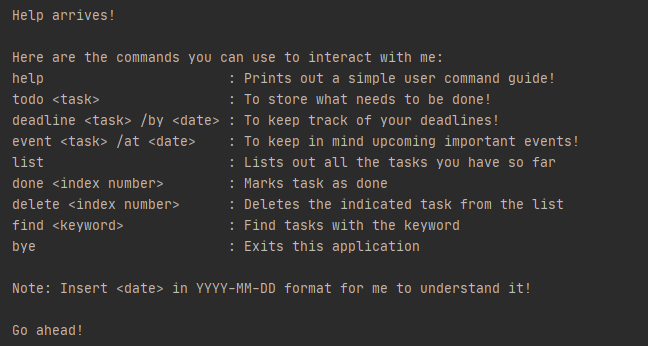
Prints command list - help
This command will provide the list of commands that you can call in Duke.
Example:
help
Expected outcome:
Adds a todo task - todo
This command will add a new todo task into the list and inform user how many tasks are there in the list.
Format:
todo <task>
Example:
todo return book
Expected outcome:

Adds a deadline task - deadline
This command will add a new deadline task into the list and inform user how many tasks are there in the list.
Format:
deadline <task> /by <date>
<date> format can either be:
- YYYY-MM-DD
- Any text
Example:
deadline assignment /by 2020-09-30
Expected outcome:

Adds an event task - event
This command will add a new event task into the list and inform user how many tasks are there in the list.
Format:
deadline <task> /at <date>
<date> format can either be:
- YYYY-MM-DD
- Any text
Example:
event birthday /at 2020-11-25
Expected outcome:

List down stored tasks - list
This command will print out the list of tasks stored in the application.
Example:
list
Expected outcome:

Mark task as done - done
This command will mark the indicated task in the list as done, provided that the task exist at that index number.
Format:
done <index number>
Example:
done 3
Expected outcome:

Delete task - delete
This command will delete the indicated task from the list.
Format:
delete <index number>
Example:
delete 3
Expected outcome:

Find task - find
This command allows you to find the tasks in the list with the corresponding keyword.
Format:
find <keyword>
Example:
find book
Expected outcome:

Exits the application - bye
This command allows you to exit from the application
Example:
bye
Expected outcome:

File storage
The list of tasks will be stored as a txt file under tasks.txt at the same location as the program location.
This file will be loaded each time the application starts, allowing you to pick up from where you left off.
You may open tasks.txt to view the content but try not to modify any of the file content as it might cause load error the next time you run the application.
Procedure:
- Open the folder where you store the iP.jar application file
- Find tasks.txt in the same folder